Loose Weight with this free Photoshop video tutorial.
Virtual diet for photos in Fotoshop. The main tool that is using in this tutorial is photoshop liquify tool. And also, the healing brush tool, patch and the clone stamp. Forward warp tool is used, too. On it, brush settings we are using are brush size (to change size of brush) and pressure (to change brush distortion strength).
And here is whole tutorial in the video:
There are cases when you have some image, logo, etc, with color background. And you have to delete that background, to remove it and make transparent gif or png image, or to replace it with background in some other color. Here is tutorial about removing the background with example. I have logo with white background and I will show here how to remove background from it and make transparent gif.
Here is how starting image looks like:
Now, I am picking Magic Wand Tool and click on white background. It selected white background but not inside parts of letters like ", P, O, etc. I will pick up those white space inside those letters. If letters are small and you need better look just increase zoom preview with scrolling the mouse wheel.
Now, Pick Rectagular Merquee Tool, right-click on image and pick "Select Inverse". That will turn your background selection to selecting all other parts of image. Again right-click and pick "Layer via copy". You just made new layer without background.
Now, click on Eye next to old layer with white background. That will make it invisible. You shall have the eye only in front of layer with empty background. Then, just go to File - Save for web. There, pick Gif or PNG. Make shore you check box next to Transparency. And save it. You removed background from logo and made new image with transparence background.
Pick clone stamp tool, pick space just near the time (alt + click) and clone it over the time.
With eyedropper tool pick color from NYC or 22:37. Make new layer and pick Type tool. Pick some digital font (I picked Digital wide font). Type wanted time. Set the font size to fit nicely into watch empty space. Click on Rectangular marquee tool. Right click on time and go to Free transform. Rotate layer to make it parallel with other watch screen elements. Edit size again if needed.
You have got same watch now with wished time showing.
This exploding text says "kaboom!". Beautiful image. In this tutorial you can make same exploding effect with your fotoshop with any text you like. For this tutorial you have to use a little bit of 3D Studio Max, too. You’re also going to use textures, which you can grab from sxc.hu. That’s about it, everything else we’ll be creating ourselves.
Francesco Mugnai wrote this great exploding text fotoshop tutorial. For this tutorial you need only AdobeFotoshop, set of real 3D text and large black canvas (1600×1200px). Learn how to make explosion text in this fotoshop tutorial
Flaming meteor text effect fotoshop tutorial
Although it looks complicated, the process is actually very straightforward. It is used only three or four filters, brushes, and of course, the Fotoshop Layer Styles. Takes typography one step further by having text falling from the sky in a burning inferno. This fotoshop tutorial uses a little AdobeIllustrator for the text and a lot of Photoshop to burn up the screen. Here is Meteor text tutorial
Here's how you can Make your own letter A brush in Photoshop.
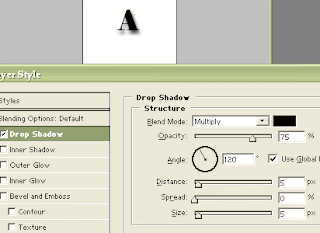
Open new Photoshop document, 80x80 pixels, Contents - White. Set foreground color to black. Pick Type tool. Chose Elephant font, Regular, 36 pixels, Strong. Now, type letter "A" in document. Do it upper case. Double-click on that layer to open layer style. left-click on Drop shadow. I've set Opacity to 75%, Distance and Size on 5 and Spread on 0. But you can play with it and figure what you like.
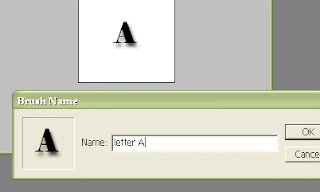
Now, just go to Edit - Define brush and pop-up will show up. There, type name for your brush ("letter A" can be appropriate name for that brush).
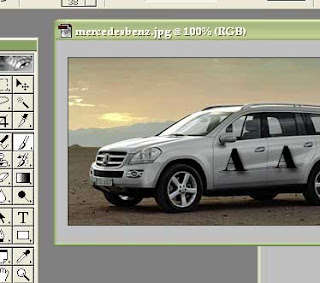
You just made letter A brush. Now, you can try it. Open some image from your hard drive in your AdobePhotoshop. Pick paintbrush tool. In Brush at top, find your new Letter A brush and click once. After, just click on picture where you would like to stamp A letter.
You can also make several Letter A brushes in different sizes. Can be proper for different image sizes.
You can find lots of software for instant logos, lots of people make logo in CorelDraw, but you can make nice logo for your website, firm, band or anything you want in Adobe Photoshop, too. Here is an example logo for MyFilmo.com.
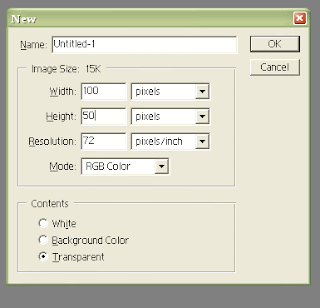
Open Photoshop. Open new document with transparent background, 100x50 pixels, like on this image.
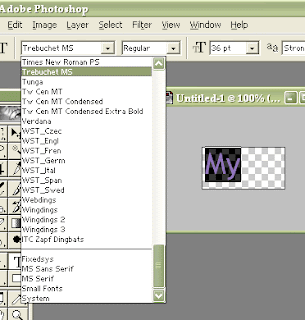
I took Type tool and typed "My". Now, you can play with fonts here. Chose some nice font, chose regular, bold or whatever and chose size. I Choose Script MT Bold font for this part.
Make new layer and type "Filmo". Play with fonts again. I finally chose "Rockwell Condensed" font. And third part, ".com" whitch I wrote with "Play Rus". Right click on ".com" layer and pick "Free transform". I made it wider and less high to fit above two layers and to look nice into whole logo.
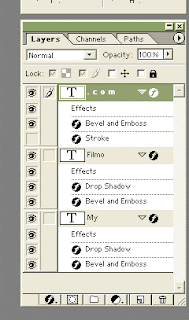
Now, we will play with layers and styles. Right click on layer and try different style. Play with that and when you like what you see, click OK and go to another layer. For this logo, I used "Bevel and Emboss", "Stroke" and "Drop shadow" effects. You can see on picture where I used which effect.
And finally, there is logo I made in Photoshop for MyFilmo.com.
In this Photoshop tutorial, we'll make a nice old paper image. You'll learn how to make it, too, following instructions. Let's start.
Open AdobePhotoshop. Open New document, 150x200 pixels with white background.
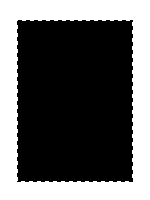
Create a new layer, pick Rectangular Marquee Tool, mark and paint selection in black. Just like on this image.
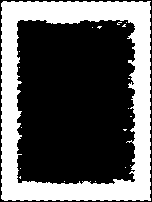
Deselect. Go to FILTER - BRUSHED STROKES - SPRAYED STROKES , and set:
Stroke Length to 10
Spray Radius to 15
Stroke Direction - Horizontal.
In Tools, pick "Magic Wand" and click inside black rectangular. Now, invert selection and click Delete. Deselect.
Go again from "FILTER - BRUSHED STROKES - SPRAYED STROKES" part but instead Stroke Direction Horizontal pick "Right Diagonal". Play with sliders a little to make nice effect.
CTRL + click on layer and pick Red:240, Green:225, Blue:205 color. Paint black rectangular.
Make new layer. In brush, pick Soft brush 45. Opacity to 20%. Mix Red:116, Green:74, Blue:0 color and paint edges.
CTRL Click on rectangular layer to load selection, invert it and delete.
Link layers and merge linked.
Go to FILTER - EFFECTS - Outer Glow. Mode - normal.
Opacity - 75%.
Blur - 1 pixels.
Intensity - 50%.
Now, go to FILTER - EFFECTS - Drop Shadow.
Mode - multiply.
Opacity - 50%.
Angle 135
Distance 7 pixels.
Blur 6.
Intensity 0%.
Now go to IMAGE - ADJUST - Brightness/Contrast, and add picture or text.
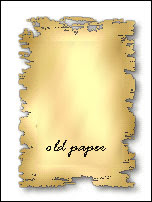
You just made old paper in Photoshop for your usage.
A great tip from the Photoshop guys showing how to create a great self-contained animation using AdobePhotoshop. You will need Photoshop, Adobe Image Ready and you will learn creat nice flash animation. Or gif animation, you can chose. When we are talking about pictures, you'll need two pictures (they used girl and nature for background here). And prepare text you will input (your slogan, ...). It's not hard to do tutorial, you will use layers, duplicating layers, opacity, move tool. In ImageReady you shall use "Tweens animation frames" tool. And you can see this video tutorial now:
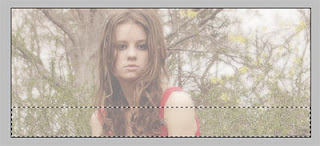
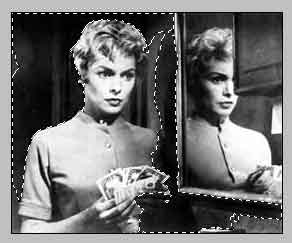
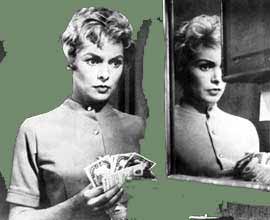
Open image you will use for banner, signature, header or some other purpose. I picked some image with nice looking girl for this tutorial. In Layers palette, double click on that (for now only) layer, and pop up will show up. Click OK and that way you'll make new layer of background. Create new layer. Set Foreground color to white. Pick Paint bucket tool and fill that layer. Move Layer1 bellow the Layer0. Click on Layer0 to make it active and set Opacity to 50%. Pick Rectangular Marquee tool and select part of image. I selected down part.
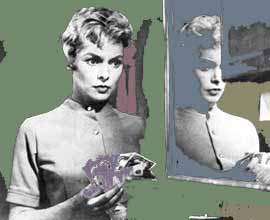
Right click and "Layer via copy".You just made Layer2. On Layers, double click on layer2 and on Layer style click Color overlay. Pick color you like (I picked green color), and set Opacity to 50%. You just made nice 2 color filtered image.
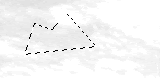
Sometimes it's nice to have your own original Photoshop brushes. So, here's how you can make them if you decide to. In AdobePhotoshop, create new document (you can do that with File-New, but also with Ctrl+N shortcut). Let it be with standard settings. Dimensions can be, lets say 150x150. You can make some different dimensions if you like, too. Now, open some photo. Image with some clouds could be appropriate. Ctrl+U to make image black and white. In new window, set Hue and Saturation to lowest, and you'll get black-white picture. Than go to Image – Adjustments – Brightness and Contrast. You can adjust it whatever you like. Play with them. When you are finished with that, take lasso tool (keyboard shortcut is L) and select part you like to see as your new brush. Copy it and paste into new document.
Go to Edit – Define brush. You'll get new window where you can name your new brush. On left side you will see how your brush looks like. Go to OK and your brush will be saved in brush set you opened last time. If you want have your own brush set, than delete default PS brushes after creating yours. After that, on Brush window go to Save brushes and chose name. Click on Reset defaults and load your brush set. Default folder for brush sets is ...\adobe\photoshop 7.0\presets\brushes .
You have a photo with nature, beautiful sea sigh on sunny day. And for some reason, you would like to add rain on that photo. You can do that, of course, in Adobe Photoshop. Open Fotoshop. Open picture. Make new layer (shortcut is Ctrl+Shift+N) . Go to Filter – Noise – AdNoise. Set Amount to 750, Distribution to Gaussian and check Monochromatic. Of course, click OK. Open Filter drop-down menu, and there go Blur – Motion blur. There set Angle to 70 degrees and Distance to 30 pixels. OK again. On Layer1, set Blending mode on Screen, to remove black color. Now, you see some kind of rain on photograph, but drops are too big and it's too sunny for rainy day. Click combination CTRL + L and set levels like on this pic.
Move black triangle to middle and rain drops will become thinner. Now, make another new layer. Click D to reset colors. In Tools palette, select Linear Gradient. Drag with mouse from top to somewhere near middle of image. Blending mode set to Multiply and Opacity set to 75%. Now, duplicate Layer1. You can do that easy dragging it on New layer icon at bottom. Click CTRL + T combination to make that layer bigger. Duplicate that layer again and make it bigger again. See what you have done. If needed, set Levels on new layers the best way.
Do you see this image? You think picture is captured from TV? No, it isn't. That effect is made in Photoshop. And here is how.
Open Adobefotoshop. Make new document 1x6 pixels with transparent background. Zoom image 1200% (maximum). You can do that easily with CTRL++ combination. Chose foreground color for TV lines (black seems nice for it). From Tools palette pick Pencil tool and color top half of image. I did top half, (top 3 pixels) but you can do that with bottom half if you like, never mind. Go to Edit – Define Pattern and write «TV lines». Now, open photo where you want add TV capture effect. Make new layer. Go to Edit – Fill and from menu pick Pattern – TV lines. Set Layer Blending mode to Overlay. Set Opacity to 15. Change Blending mode from Normal to Overlay. Double click on that new layer, click on Pattern Overlay and set – Overlay, Opacity 50%, Pattern pick your new one, Scale 100%. You should get result like in first picture from this tutorial.
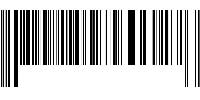
Open Adobe Photoshop. Create New document, dimensions 200x100 pixels, on white background. Took «single row marquee tool» and select picture on bottom horizontally, like on this picture.
Go to «Filter -> Noise -> Add Noise» . Chose Amount - 400, and Distribution set to Gaussian . Check Monochromatic checkbox. Now, go to Edit > Free Transform and drag high up to top op picture. Apply the transformation.
Select bottom middle part of image with rectangular marquee tool and delete selected to make white part.
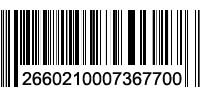
Now, pick up Type tool from Tools palette, and click on left side white part you made. Type several numbers like real bar code have. Select numbers you typed, and change Font size to fit picture and look naturally. Also, pick Move tool and move that layer with numbers some left, right, up or down, if needed.
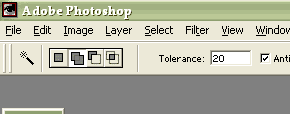
In this tutorial you can learn how to make white teeth on your photo in AdobePhotoshop. Open image in Adobefotoshop. Select Magic Wand tool from tools palette. Set Tolerance on 20 and turn on "Add to selection" like on image.
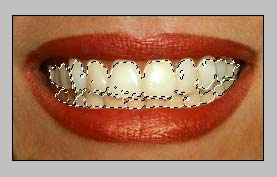
Now, with Magic Wand, select teeth. You can click several times to select all teeth and their parts you want to make white.
When you selected all parts, go to "Image -> Adjustments -> Hue/ Saturation". Set up follows: Edit Yellows Hue 0 Saturation -100 Lightness +50.
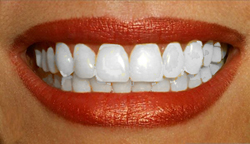
Go to OK and you're done. If you see some yellow teeth parts after, just do the same process again on that parts need improve.
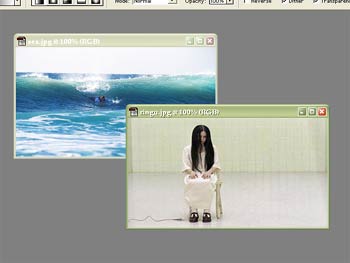
Here is short AdobePhotoshop tutorial about fading 2 images into 1 using Photoshop's Layer Masks. At start, open 2 separated images you would like to use here, in Photoshop. It would be convenient images are the same dimensions. Images are in 2 documents now.
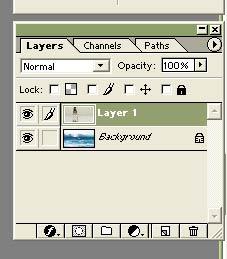
When one image document is active, select all and copy. Than, activate other document and paste. Now you have both images in one Photoshop document, one like background and another like "Layer1".
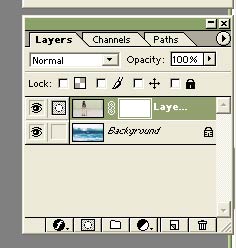
You have to create layer mask now. Make Layer1 active (just click on it in layers) and go to "Layer - Add Layer Mask - Reveal All" in toolbar. You should see something like picture bellow.
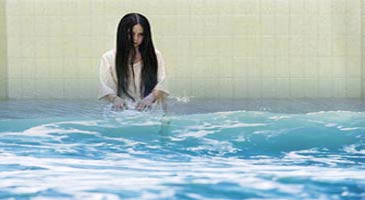
Now go to Gradient tool in tools palette. Select "Linear gradient type" and choose the "Black, White" swatch. Click and drag in the document window from the bottom to the top. That will create the gradient fill. You can drag left to right, or right to left, or anywhere you like here. That depends on what manipulation you would like to make. Bellow is final fade picture I made for this tutorial.
In this tutorial, I will explain you how to make nice "explosion" effect in Photoshop. First, open new document, 200x200 pixels, RGB mode, 75 pixel/inch. Setup Foreground color to black, and Background color white. That you can do with simple click "D". Now, activate Filters - Render - Clouds. You will get image like this:
After that, activate "Filters - Render - Difference Clouds". Apply Difference Clouds filter 3 times to image. That is easier to do with clicking Ctrl+F 3 times and your image will look like this:
We are getting to next step, and that's activating "Image - Adjustments - Levels". Simple Ctrl+L will open dialog-box, and there set to RGB, Input levels to 11 - 1,23 - 178, and Output levels to 0 - 255. Click OK.
Now, in your Photoshop, activate "Image - Adjustments - Invert". Shortcut for that is Ctrl+I. And after that you'll get something like this:
Go to "Filters - Stylize - Extrude " and set up: Type - blocks Size - 3 pixels Depth - 52 - Level-based Solid front faces. Result should be this kind of picture:
Copy layer (Layer - Duplicate Layer). Activate new layer and Add a layer mask. Activate Gradient Tool, pick Black, White colors with Radial Gradient. Now, goto "Image - Adjustments - Hue/Saturation" (Ctrl+U), and in dialog-box adjust: Check both, "Colorize" and "Preview". Hue - 222 Saturation - 42 Lightness - 0. Click OK and you'll see this image:
Merge both layers with "Layer - Flatten Image". Also, open "Filter - Blur - Radial Blur" and set to: Amount - 10 Blur method - Zoom Quality - Good. This is next image you shall see then:
To change from blue color, just go to "Image - Adjustments - Invert", or click Ctrl+I and you will see :
And final step is "Image - Adjustments - Variations " where you shall click "More Yellow" and "More Red" few times. There you have preview so you can play with that until you get satisfied with final result. Here is mine final explosion image: